Collisions
Adding Collision to a Scene
Select the Collision Tool from the Editor Tools. There are 5 common collision types that can be added to most scenes.
- Solid Stops colliding actors from entering the tile on any side.
- Top/Bottom/Left/Right Stops colliding actors from entering the tile from that specific side. This is useful for one-way collision and semi-solid platforms.
Additionally depending on the scene type selected you may have additional collision tiles available.
- Ladder (Platformer only) Allows moving up and down in Platformer scenes.
Some scene types, such as Point and Click, only support Solid collisions.
By modifying your game engine or using plugins you may define additional scene types which can each specify their own scene specific collision tiles in their engine.json file.
Drawing Slopes
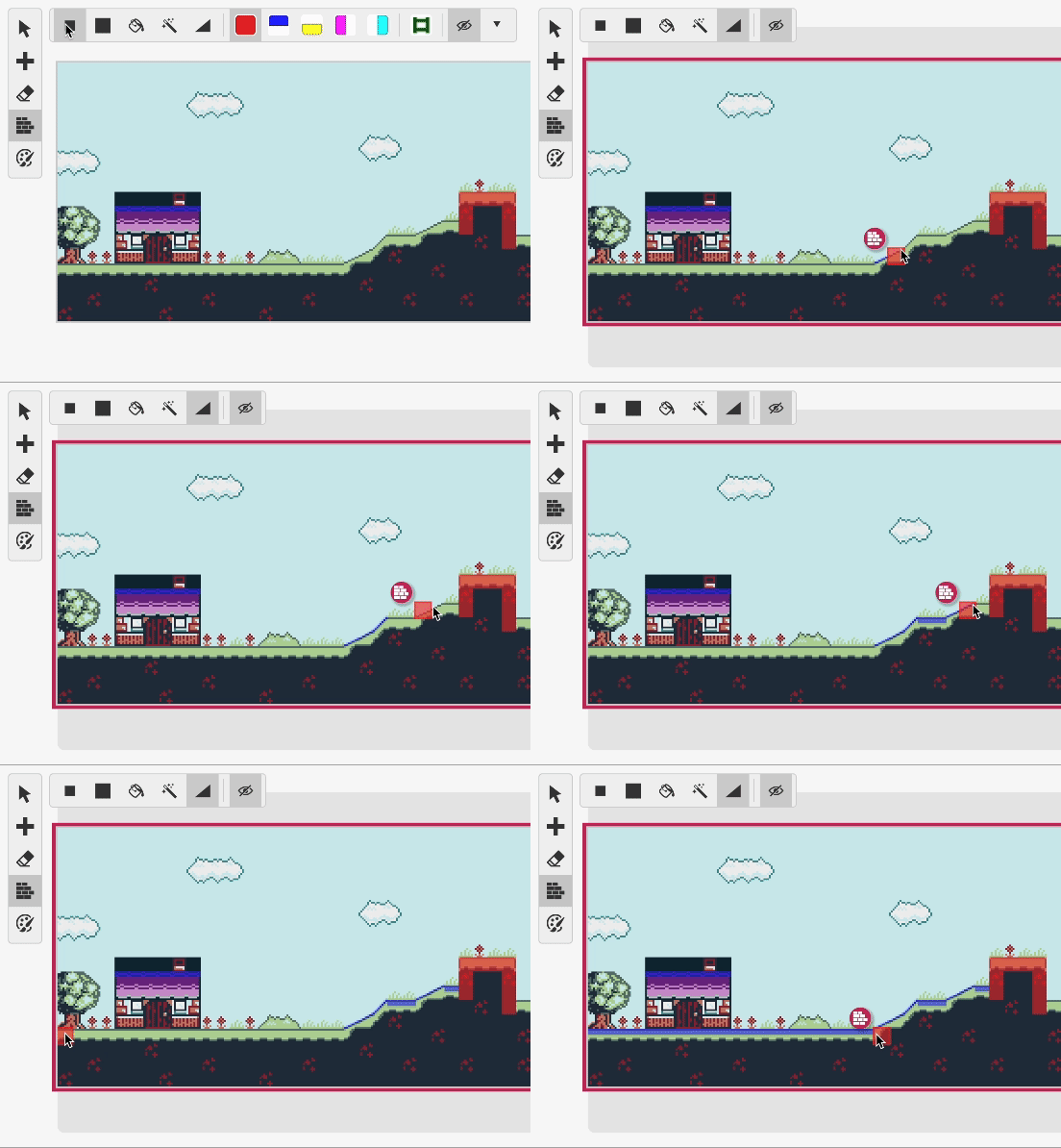
The Slope Brush is a quick way to add slope collisions to your scenes (Platformer only). With the brush selected click on the starting tile and drag to one tile after where you want the slope to be placed. When placing a shallow slope you can hold Shift while dragging to offset the slope vertically.
It's also possible to use this tool to draw horizontal and vertical collisions by holding Ctrl while dragging. When dragging left to right you will create a Top collision, right to left creates a Bottom collision, top to bottom creates a Left collision and bottom to top creates a Right collision. Holding Ctrl + Shift will flip the collision direction (Top will become Bottom etc).
Magic Brush
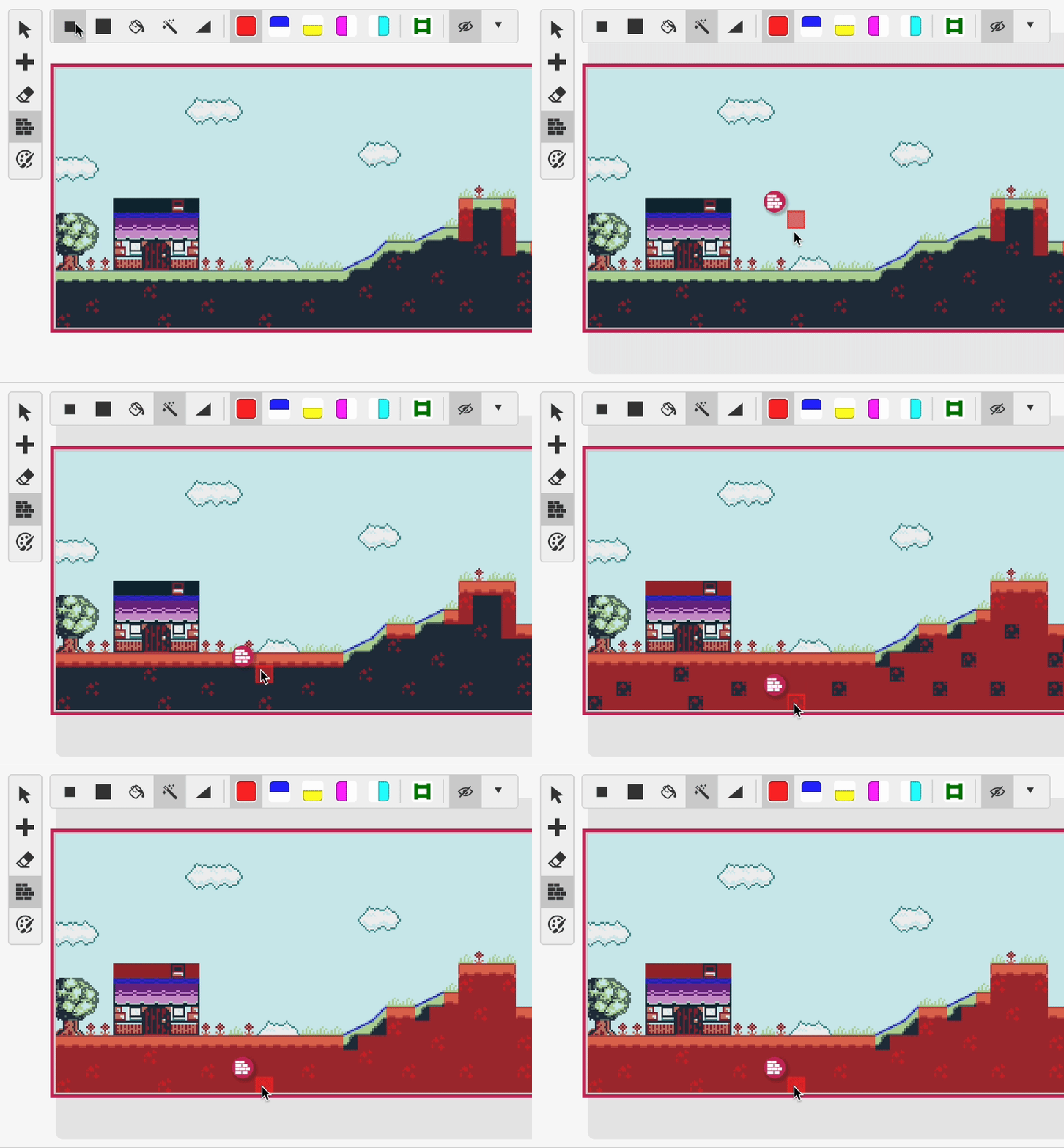
The Magic Brush is available when adding collisions or coloring a scene and can be used to paint every tile in the scene that matches the one you clicked instantly.