Palettes
Using the Palette Editor you can configure the colors available in your Color + Monochrome or Color Only game.
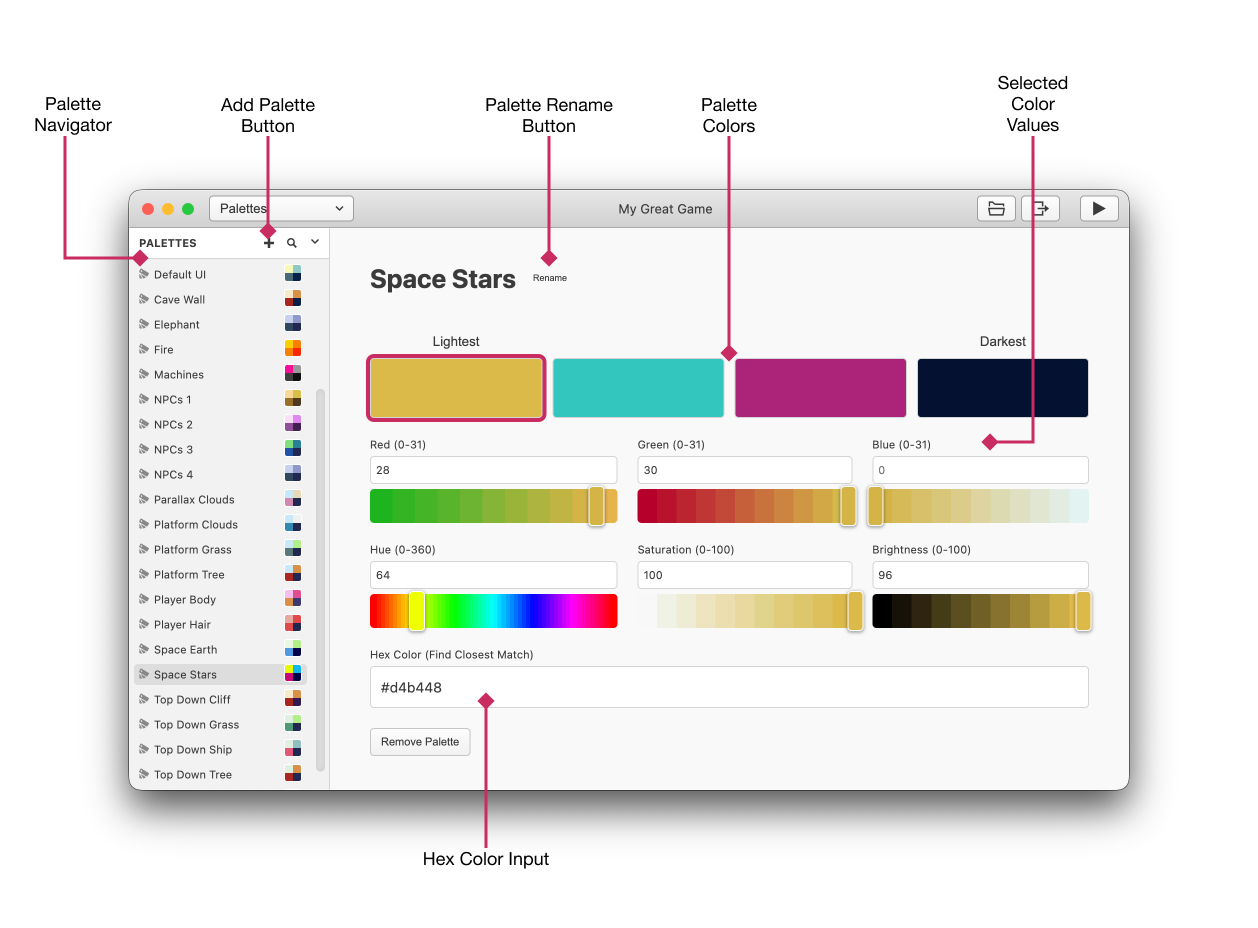
To use the palettes you must assign them to your Scene and then paint the chosen background of your scene with the Color Tool.
Editing a Palette
To create a new palette, click the Add Palette button at the top of the Navigator.
To rename a palette, click the Rename Palette button next to the palette name, or right click the palette in the Navigator and choose Rename.
When a palette is selected, you'll see its four colors. The colors in a palette replace the monochrome colors in your game mapping from the Lightest to Darkest.
Click a color to edit it using either RGB (red, green, blue) or HSB (hue, saturation, brightness) values. You can also paste a Hex Value into the Hex Color input.
Because the GBC can't display the full range of colors shown on modern monitors, GB Studio will automatically convert your hex value to the closest color that can be displayed on real hardware.