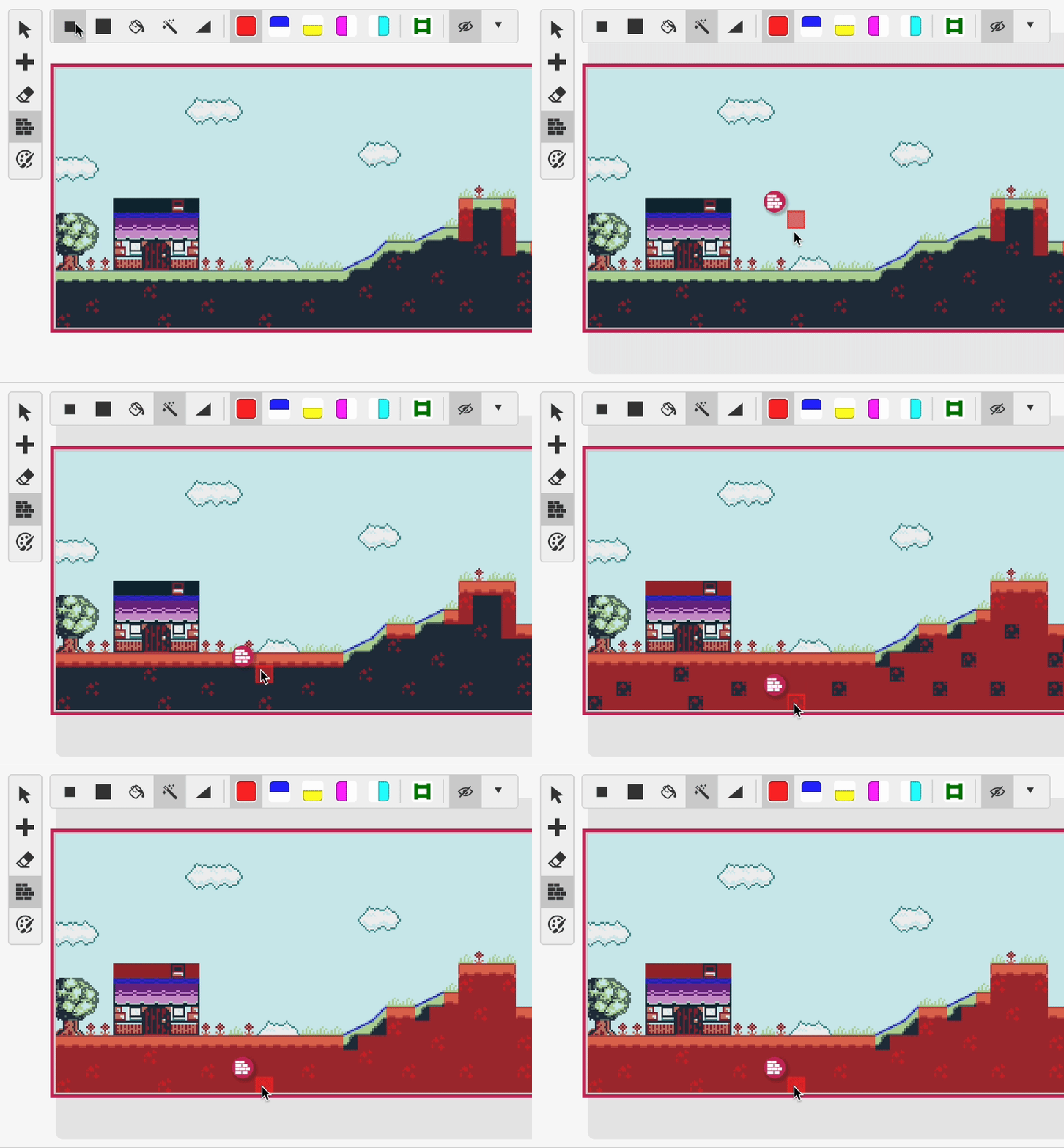
Color
Coloring a Scene
Select the Color Tool from the Editor Tools. There are 8 palettes types that can be added to a scene with Color Mode enabled. Palettes can be adjusted in Settings. Note that the 8th palette in a scene will also be used for Dialogue Windows and menus.
The palettes used in the Color Tool can be swapped out for existing palettes (such as the UI palette) by long-clicking on a palette.
For more information about the drawing mode used for the Color Tool and the Collision Tool, see Keyboard Shortcuts.
Automatic Color
If your image is already a color .png file you can try switching to using Automatic Background Palettes using the Editor Sidebar.
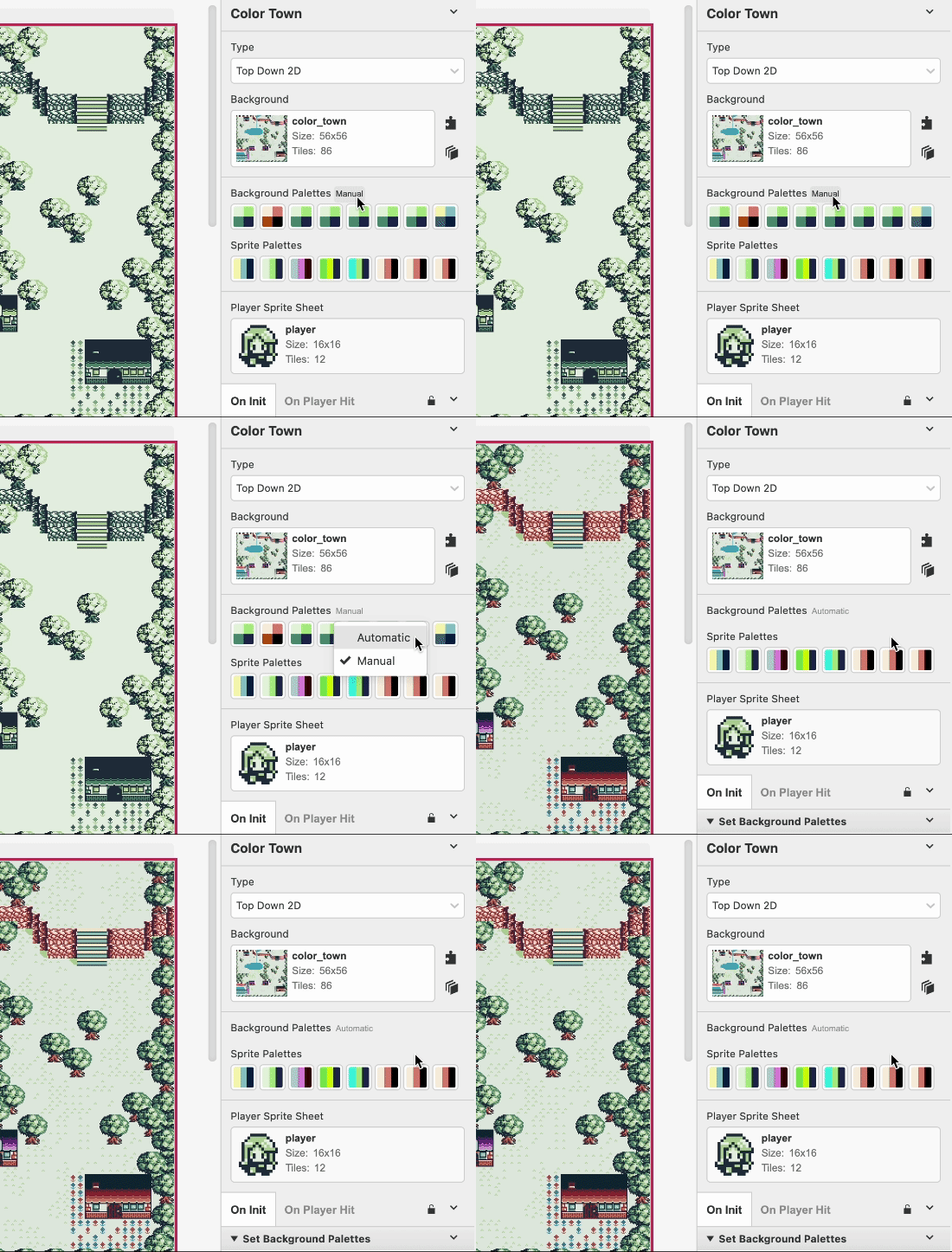
You will need to be careful to follow the same requirements about unique colors per scene and tile when using Automatic Background Palettes if you want your images to display correctly. For example, using more than 7 unique color palettes will cause palette 8 to be overwritten meaning dialogue and menu windows may not appear correctly for that scene.
When using Automatic Background Palettes, Monochrome tiles are also created automatically. If you want to support both Color and Monochrome devices you may want to provide a Monochrome Override image to give more control how the background appears on Monochrome devices.
Extract Palettes
The Background Palettes type field also includes the ability to Extract Palettes from a color background image.
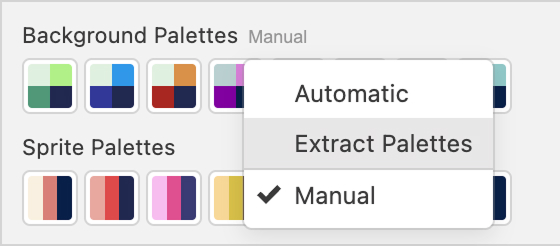
Selecting this option will read the currently selected color background image and create the palettes needed, paint the tiles in your scene and will also create a Monochrome Override image for your background.
Tile Priority
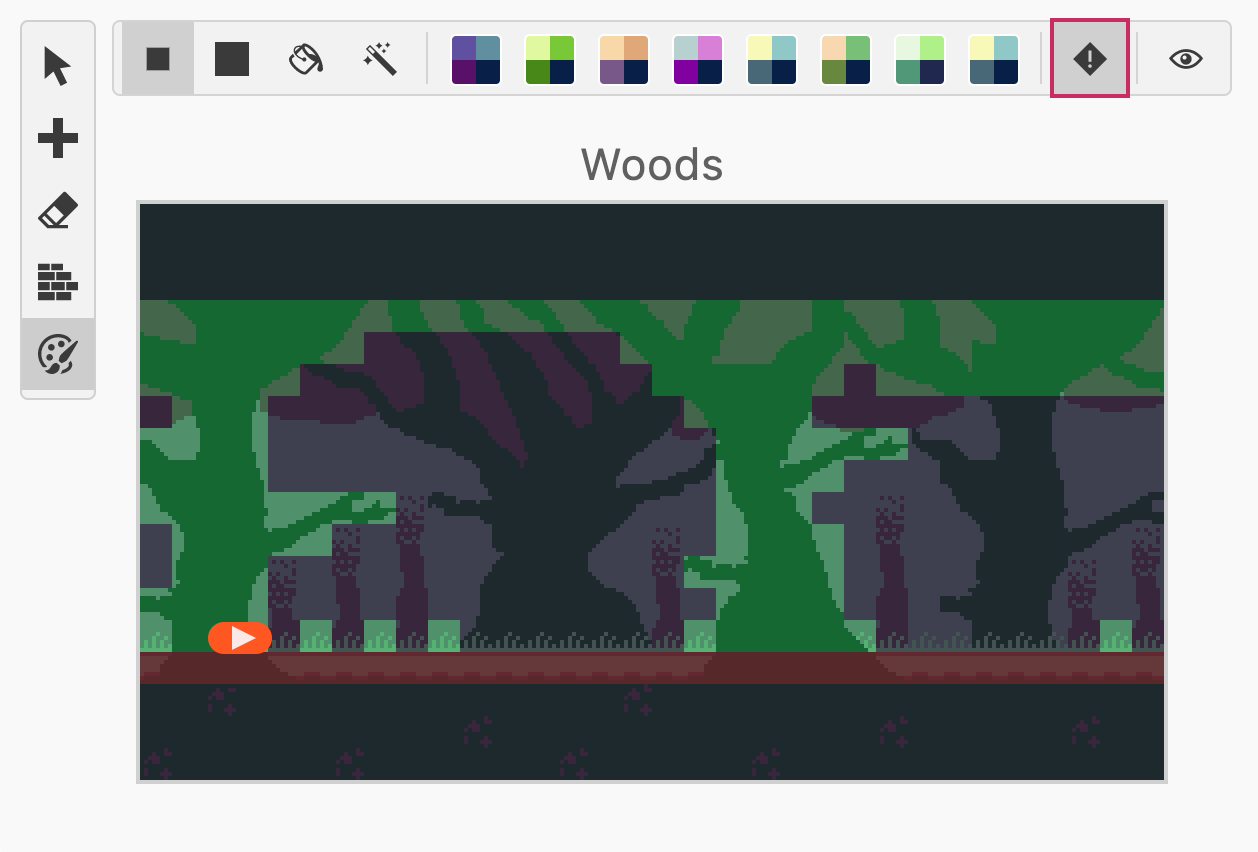
When coloring a scene you can use the <!> button to set priority tiles, these tiles will appear in front of actors (on GB Color games only) allowing you to create depth in your scenes. Note that the first color in the tile's palette will be transparent and drawn behind the actors.
Magic Brush
The Magic Brush is available when adding collisions or coloring a scene and can be used to paint every tile in the scene that matches the one you clicked instantly.