Prefabs
Prefabs are reusable templates for Actors and Triggers.
If you find yourself adding the same enemies, pickups, doors, or cutscene triggers across multiple scenes, prefabs let you define them once and reuse them everywhere. When you edit the prefab later (for example to fix a script bug or update a sprite), all instances of that prefab update automatically.
You can also override individual instances when you need small differences between actors and triggers in each scene.
Creating a Prefab
There are two ways to create a new Prefab:
-
Click the
+in the Prefab Navigator title bar and choose either "Actor" or "Trigger" from the dropdown menu to create a new blank prefab.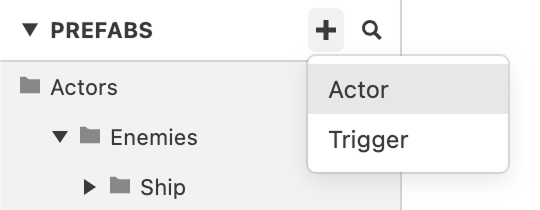
-
Select an existing Actor or Trigger and using the
 button choose "Convert to Prefab" to create a prefab from an existing entity. This will also cause the existing Actor or Trigger to be linked with this Prefab.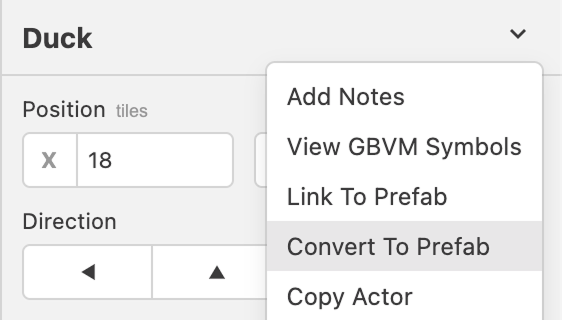
Instantiating a Prefab
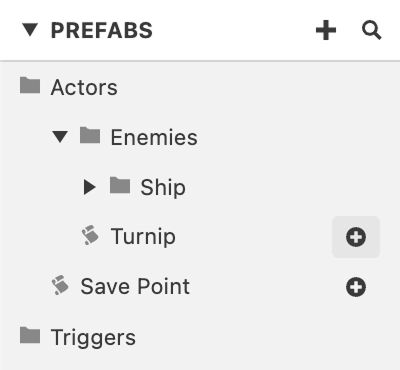
To create an instance of a prefab, click the + button next to the prefab's name in the Navigator then click on scene where you want to add the instance.
Overriding a Prefab
Each placed prefab is an instance. If you edit a script event inside an instance, those changes apply to that instance only (they won’t change the prefab).
Overridden values are highlighted with a blue outline.
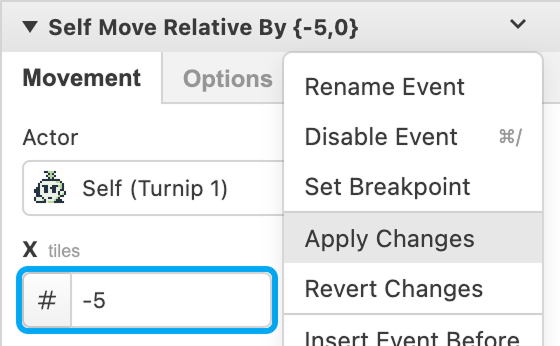
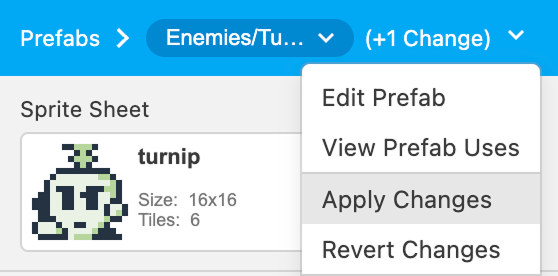
If you decide the changes should become the new default for every instance, open the menu and choose Apply Changes. You can apply changes for individual edited events, or apply all overrides at once.
The same menu also lets you revert an instance back to the prefab defaults.
Unpacking a Prefab
Unpacking removes the link between an instance and its prefab. The instance becomes a normal Actor or Trigger that won't receive further updates from the prefab.
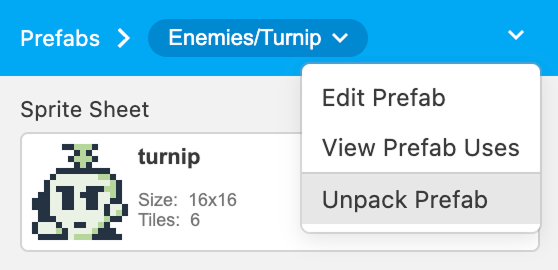
This is useful when you want to start from a prefab but then heavily customize a specific instance.
Unpacking only affects the selected instance (the prefab itself, and other instances, are unchanged).